You can even build a landing page for your store at a custom route (eg. /store). Learn More.
1. Item Types
Shopping Cart works differently for Items with and without variants.
1.1 Items without variants
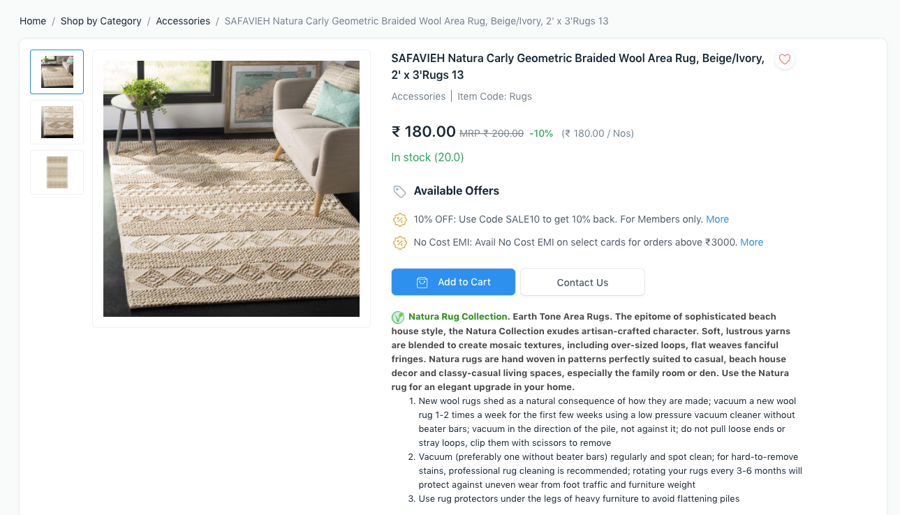
Items without variants have their dedicated product page and an Add to Cart button.
Item without Variants
1.2 Items with variants
Since Item Templates can't be bought directly, there is a Configure button to choose the specific variant and add it to cart.
Item with Variants
2. Cart Quotation
If checkout is disabled, when your customers add an item to cart, they can click on the Request for Quotation button to get a quote for it. A Quotation is generated in the system.
3. Cart Checkout
You can enable checkout from the Checkout Settings section in E Commerce Settings.